Operator guide — platform operations
The operator is MySentinel platform staff — the people at Cybertron who onboard new campuses, watch delivery health across the platform, and help schools when a setup step stalls. Your JWT carries the platform scope, so unlike an admin (who is locked to one school by their token) you can see and act on every school on the platform.
Two honest points to set expectations up front:
- There is no group-scoped owner login yet. (Roadmap) The operator role sees all schools, not a filtered slice. A chain owner cannot today log in and be scoped to only their own campuses — that group tenant is on the roadmap, not shipped. If you run a group, you currently use the operator console with platform-wide visibility.
- One live shard today. Cross-school operator and audit reads are served from a single live database shard (
shard_0). The platform is built shard-ready (@mysentinel/shard-router), and tenant isolation between schools is enforced in code and by the verified token — but physical per-campus databases are Roadmap, not live. Treat isolation as logical-and-enforced, not physical-per-school.
Environment note. Production is currently a hollow shell with no secrets configured. Demo and validate on UAT, never on production.
Signing in
Log in at /login as operator@example.com (demo password password123). The login banner reads “Environment: Local. This is not production.” so you always know where you are. Operator does not require passkey step-up the way admin does, but the account menu still offers Profile, Passkeys, Sessions, Appearance and Language (Use school default / English / Afrikaans / isiZulu).
RBAC is enforced at the gateway: an officer or admin who tries to reach /operator is bounced. Only a platform-scoped token gets in.
The Operator Console
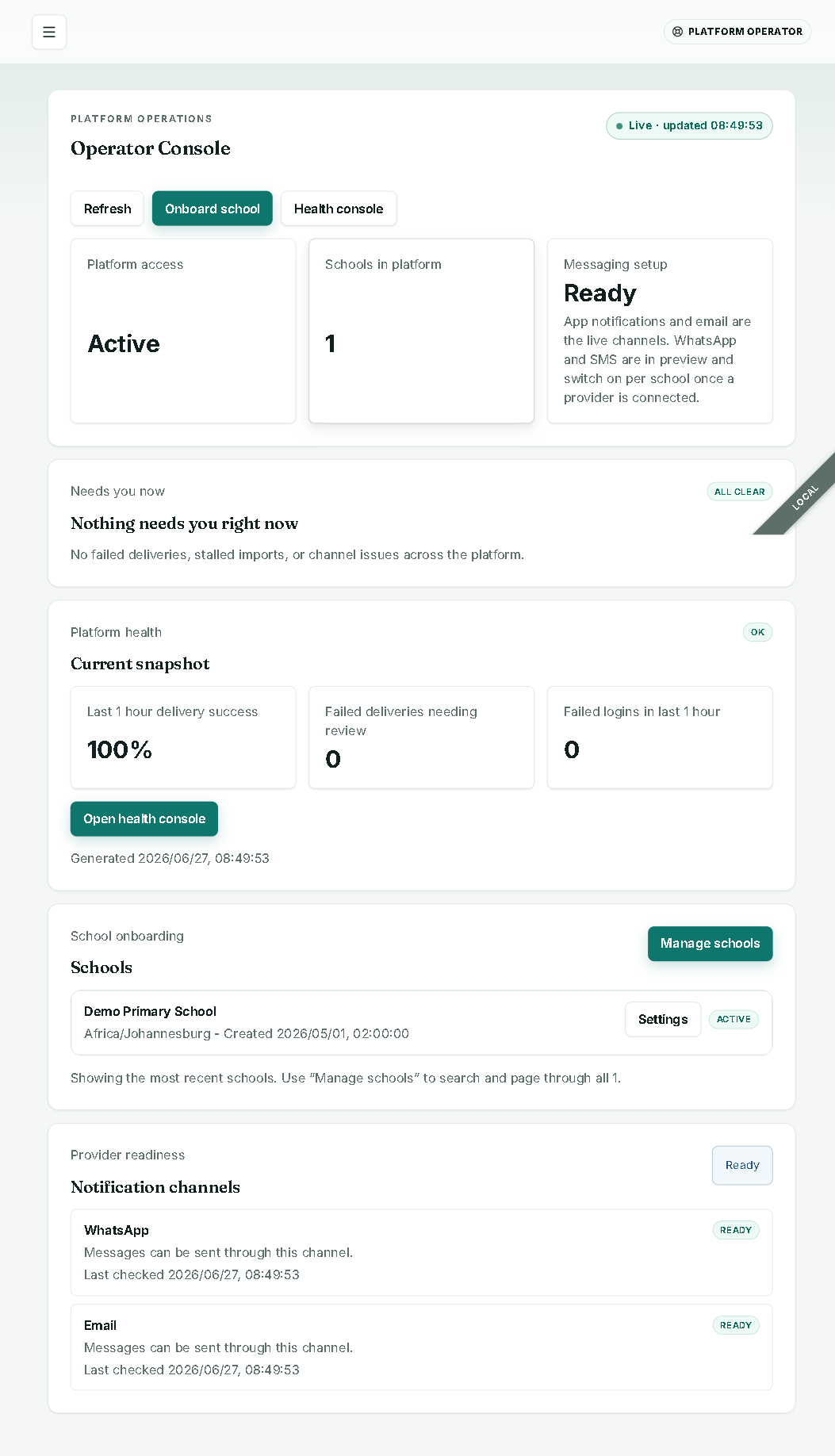
The console (/operator) is built to sit open as a wall-board — it refreshes itself every 30 seconds while the tab is visible, and the header shows “Live · updated . Three actions sit at the top:
| Action | What it does |
|---|---|
| Refresh | Pulls a fresh snapshot now (instead of waiting for the 30s poll). |
| Onboard school | Opens the new-school form (/operator/schools/new). |
| Health console | Opens the full cross-school health view (/operator/health). |
The three status cards
- Platform access — Active when your session is healthy.
- Schools in platform — the total school count.
- Messaging setup — Ready or Not configured, with the honest caption: “App notifications and email are the live channels. WhatsApp and SMS are in preview and switch on per school once a provider is connected.”
Needs you now
A triage panel that reads “Nothing needs you right now” (green, “All clear”) or lists the open items — failed deliveries, stalled imports, channel issues — each as a tappable card that takes you straight to the fix. Red rails are reserved for the genuinely stuck (dead-lettered) cases; amber means “worth a look”.
Platform health snapshot
A compact snapshot with Last 1 hour delivery success, Failed deliveries needing review (with the oldest captured timestamp), and Failed logins in the last 1 hour, plus an Open health console button. Below that, a Recent schools list (most recent first) and Provider readiness for WhatsApp and Email.
Onboarding a new school
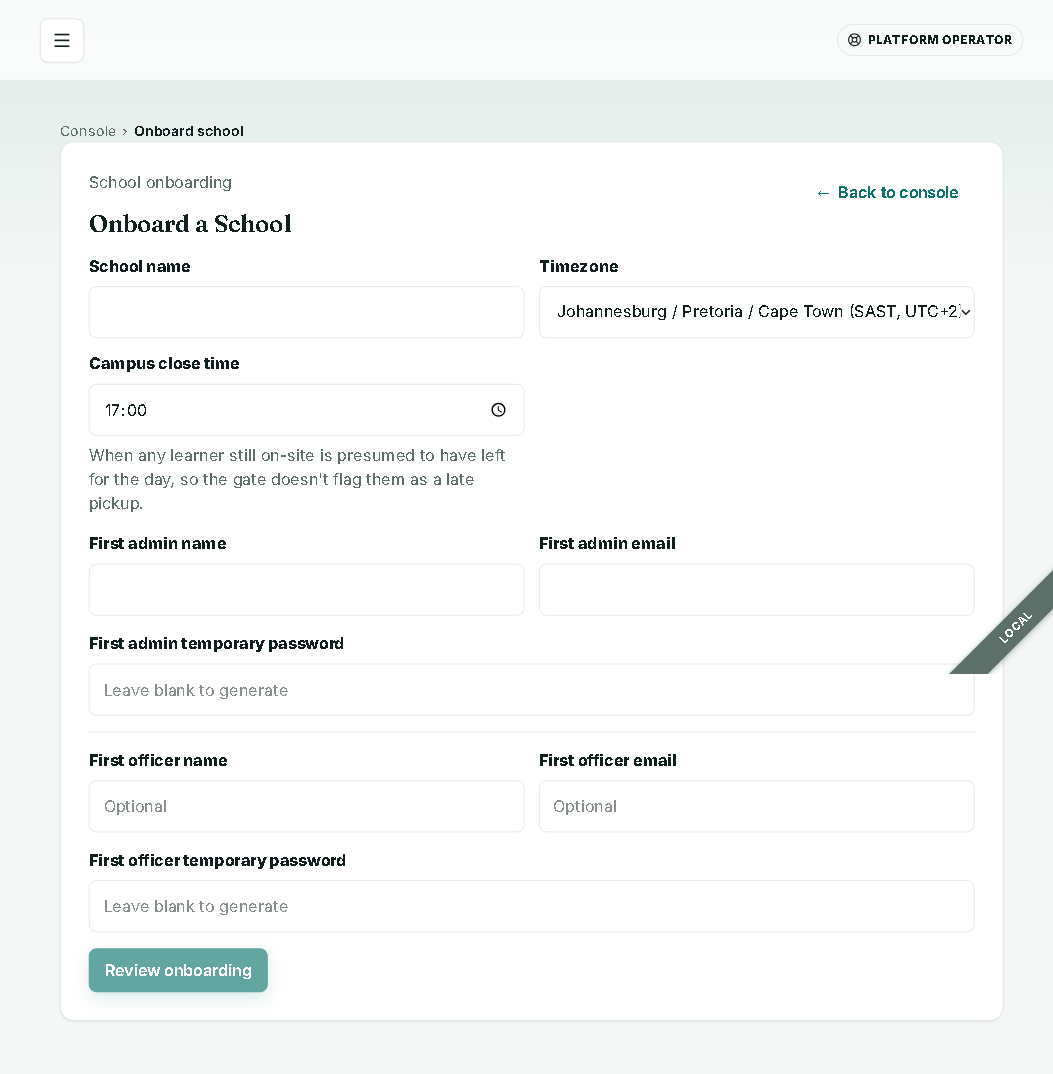
From the console choose Onboard school. The form collects the minimum needed to stand up a campus and its first people:
| Field | Notes |
|---|---|
| School name | Required. |
| Timezone | Defaults to Africa/Johannesburg; pan-African and global options are available. |
| Campus close time | 24-hour HH:MM (default 17:00). When any learner still on-site is presumed to have left, so the gate doesn’t flag them as a late pickup. |
| First admin name / email | Required — this is the person who will run the school workspace. |
| First admin temporary password | Leave blank to generate one automatically. |
| First officer name / email | Optional — both filled or both blank. |
| First officer temporary password | Leave blank to generate. |
Review before commit
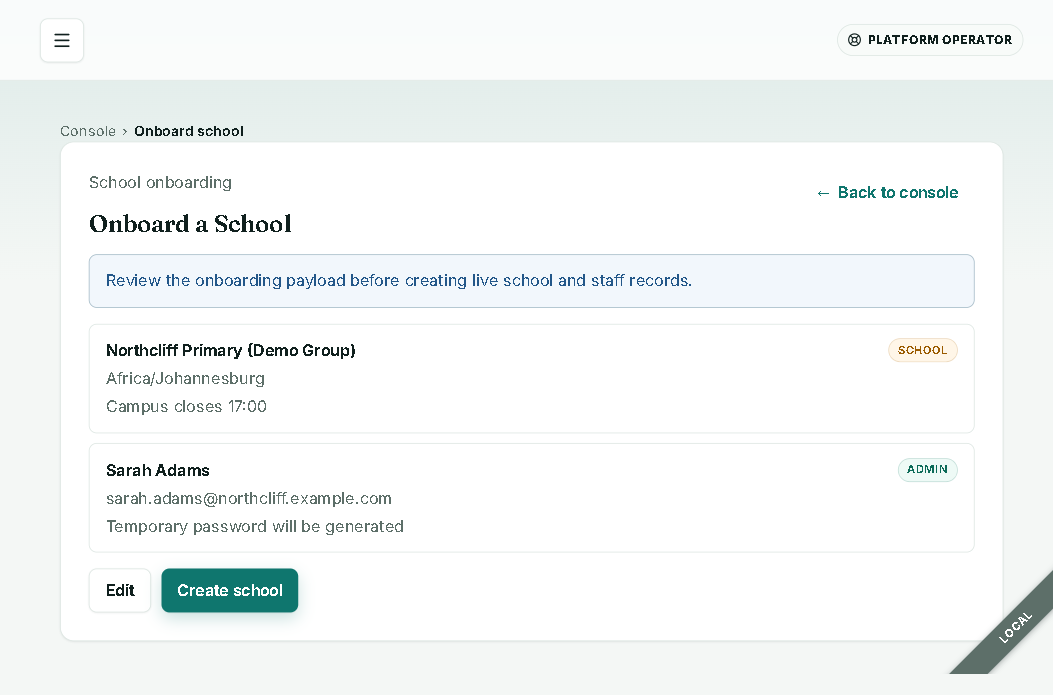
Review onboarding shows a read-only summary of exactly what will be created — the school (name, timezone, campus close time), the admin, and the optional officer — each tagged with whether you supplied a password or one will be generated. The notice reads “Review the onboarding payload before creating live school and staff records.” Use Edit to go back or Create school to commit.
The durable provisioning workflow
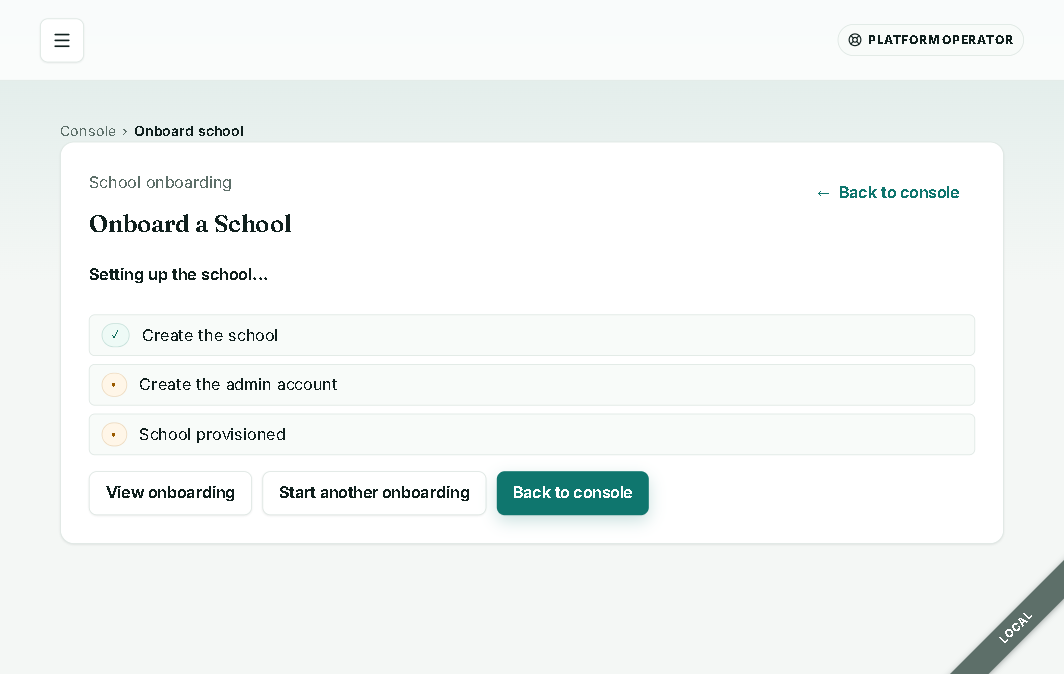
Creation runs as a durable Cloudflare Workflow, so it survives a partial failure rather than leaving a half-built school. The page polls the run every 2 seconds and ticks the steps green in place:
- Create the school ✓
- Create the admin account
- School provisioned
When the run completes, a success note reminds you that temporary passwords are shown only here, at creation — they are not stored afterward (only email hashes are persisted), so capture them now if you generated them. From the result you can View onboarding (the run detail page) or Start another onboarding.
If a later step fails, the run is marked partial_failure (the school and its visible record stay put for follow-up) rather than silently failing; a hard failure at school creation marks it failed.
The Schools list
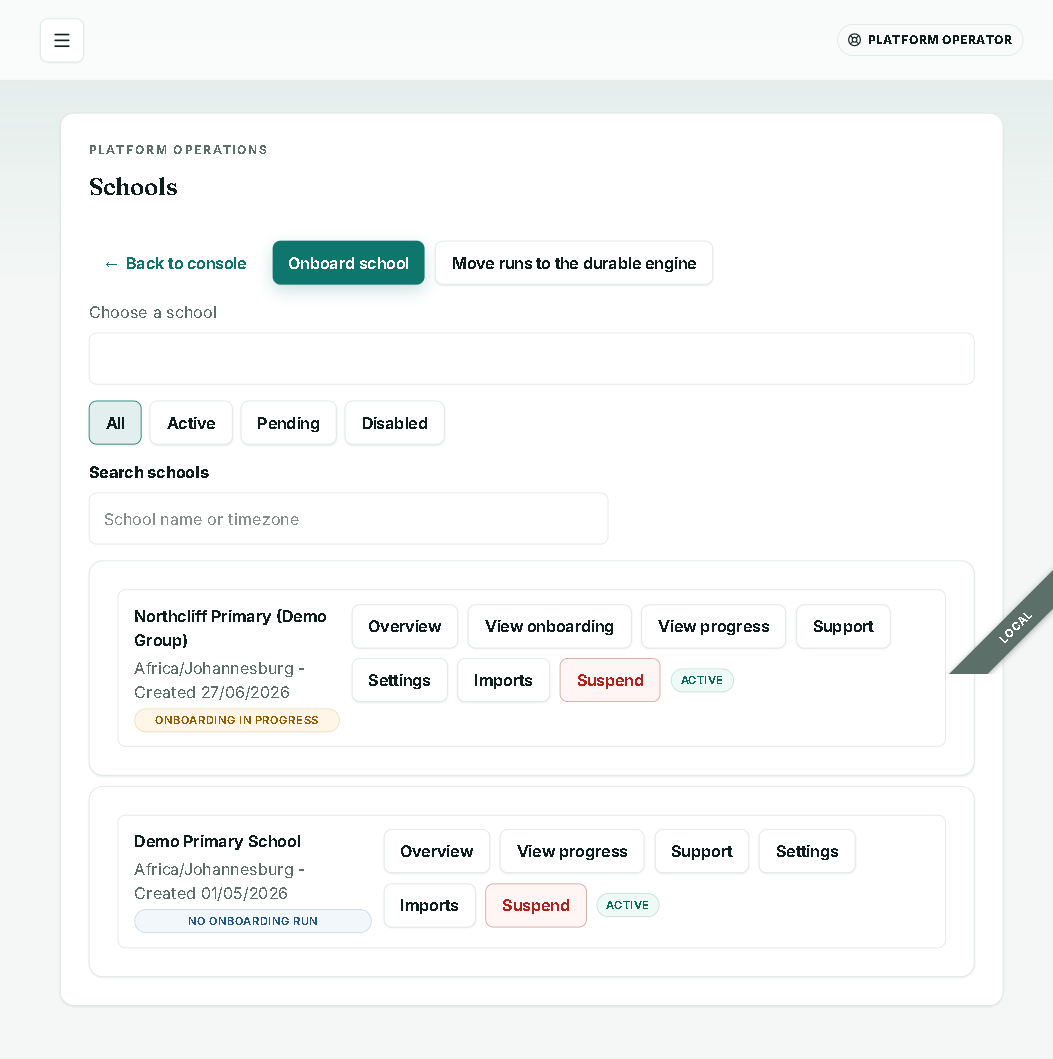
/operator/schools is your roster of every campus. Filter by All / Active / Pending / Disabled, search by name or timezone, and jump straight to a school with the picker. Each row shows the school name, timezone, created date, and an onboarding status chip (Onboarding complete / In progress / Needs follow-up / Failed). Per-school actions:
| Action | Goes to |
|---|---|
| Overview | The school’s operator detail page. |
| View onboarding | The latest onboarding run (when one exists). |
| View progress | Inline learners / active learners / classes / staff / last gate activity. |
| Support | Support tools for that school. |
| Settings | Operator-side school settings. |
| Imports | Roster imports for that school. |
| Suspend / Reactivate | Lifecycle change, guarded (below). |
Suspend is deliberately hard to do by accident: you must retype the school’s exact name to confirm, the same typed-confirmation gesture used for emergency actions. The panel warns plainly — “Suspending blocks all logins and gate scans for this school.” A disabled school renders neutral, not red; red is reserved for true emergencies.
Cross-school health and partial-failure recovery
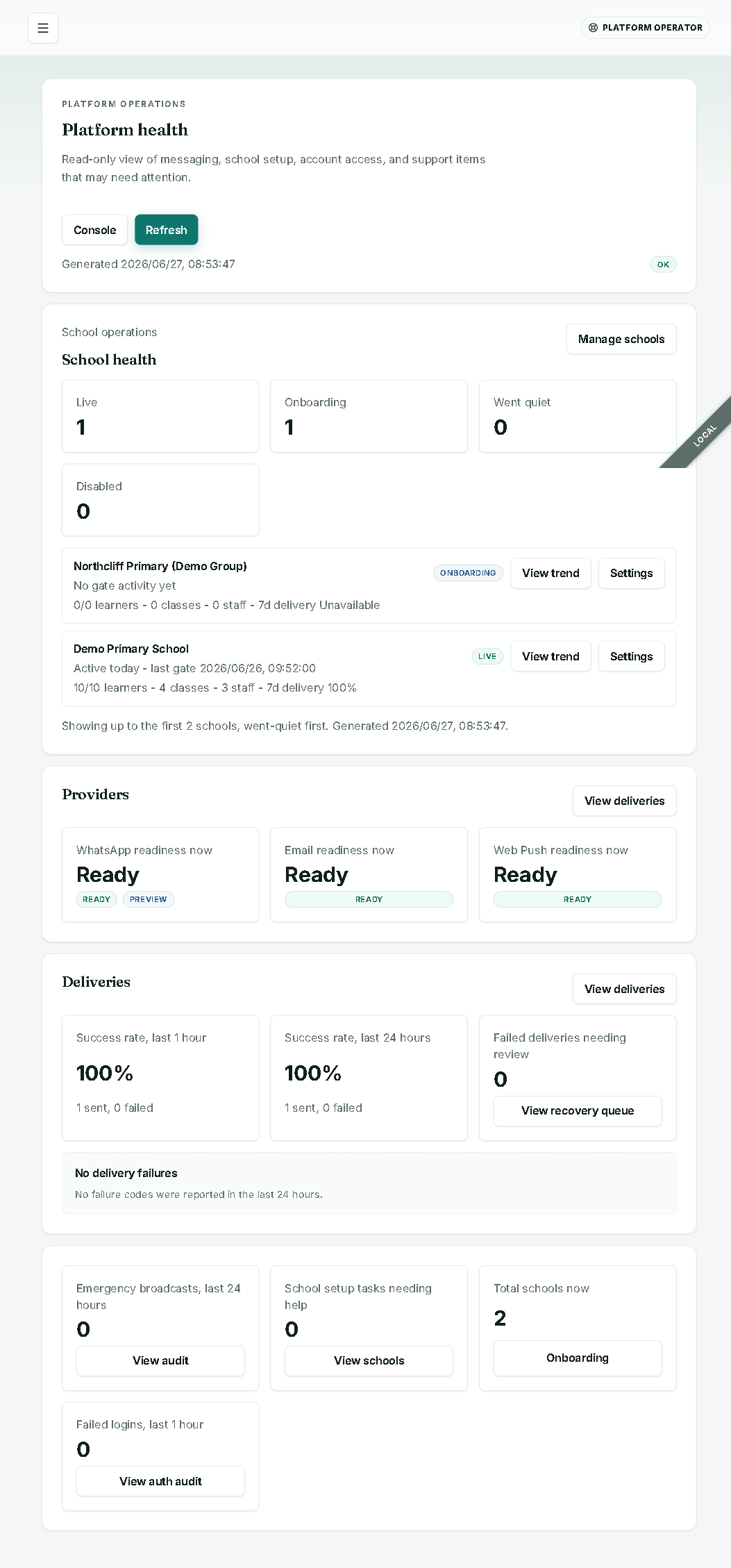
The Platform health console (/operator/health) is a read-only view of messaging, school setup, account access, and support items. It rolls up four areas:
- School health — every school as Live / Onboarding / Went quiet / Disabled, with learner/class/staff counts and 7-day delivery rate. “Went quiet” (no gate activity for N+ days) shows amber, never red, and is surfaced first so you can reach out. When a count can’t be fetched it says “Activity temporarily unavailable” rather than faking a “no activity” reading.
- Providers — WhatsApp, Email, and Web Push readiness right now (see below).
- Deliveries — success rate over the last 1 hour and 24 hours, failure-reason breakdown, and Failed deliveries needing review with a link to the recovery (dead-letter) queue.
- Other signals — emergency broadcasts in 24h, open school-setup tasks, total schools, and failed logins in the last hour (each linking to the relevant audit view).
Recovering a stuck onboarding
When a school was created but a follow-up step didn’t finish, it appears under “School setup tasks needing help” with its failure reason. Confirm the school actually has an admin, then click Acknowledge — that clears it from the banner and the list immediately. This is the supervised recovery path for partial-failure runs.
Audit is append-only, enforced by a database trigger. It is not a cryptographic hash-chain / WORM store — state that plainly if a buyer’s advisor asks.
Provider readiness and channel honesty
The platform is honest about which channels are live. App notifications (web push) and email are the live channels; WhatsApp and SMS are Preview and switch on per school only once that school’s provider is connected. Until then, messages on those channels silently demote to email rather than being lost. The console and health views label each provider Ready / Not configured so you always know the real state.
Two readiness caveats to keep honest:
- Web push is implemented and proven against the RFC-8291 vector in code, but each environment still needs its VAPID secrets provisioned and a real-device test before you can claim end-to-end push. (Per-environment provisioning.)
- WhatsApp / SMS are provider-gated per school and remain Preview until connected. (Roadmap to live per school.)
The billable-learner report
Billing is out-of-app — finance is handled manually, outside MySentinel. The operator billable-learner report (/operator/billing) exists only to produce the informational count that feeds a manual invoice. It opens answer-first on the total billable learners for the chosen month, then a calm per-school table beneath; the school name always renders (never a raw ID). You can pick from the current month plus 23 prior, filter by school, search, and download the CSV that goes to finance. There is no amount owed, invoice, or payment surface here — pricing (~R10/learner/month, negotiable) and channel costs are settled outside the app.
What you will not find: a consolidated cross-campus academic report. Today only channel-usage and billing aggregates exist at the platform level; a roll-up of attendance/marks across campuses is Roadmap.
Known polish cracks (honest)
- The report-builder still has a free-text “Class ID” box rather than a picker.
- The admin attendance page is currently hardcoded English (the rest of the app is trilingual en/af/zu).
These are cosmetic, tracked, and do not affect the operator flows above — but a guide that hides them wouldn’t be doing its job.