

The school workspace
Guardians and reaching them
Approving the adults captured at the gate, getting a parent's contact details confirmed, and the queue of parents who would hear nothing at all if you sent a message right now.
A guardian record is doing two jobs at once. It says which adults may collect a child, and it says who gets told when that child arrives or leaves. Three screens in the Queues section of your menu keep those two jobs honest, and it is worth understanding what each of them is actually asking of you.
Guardian approvals
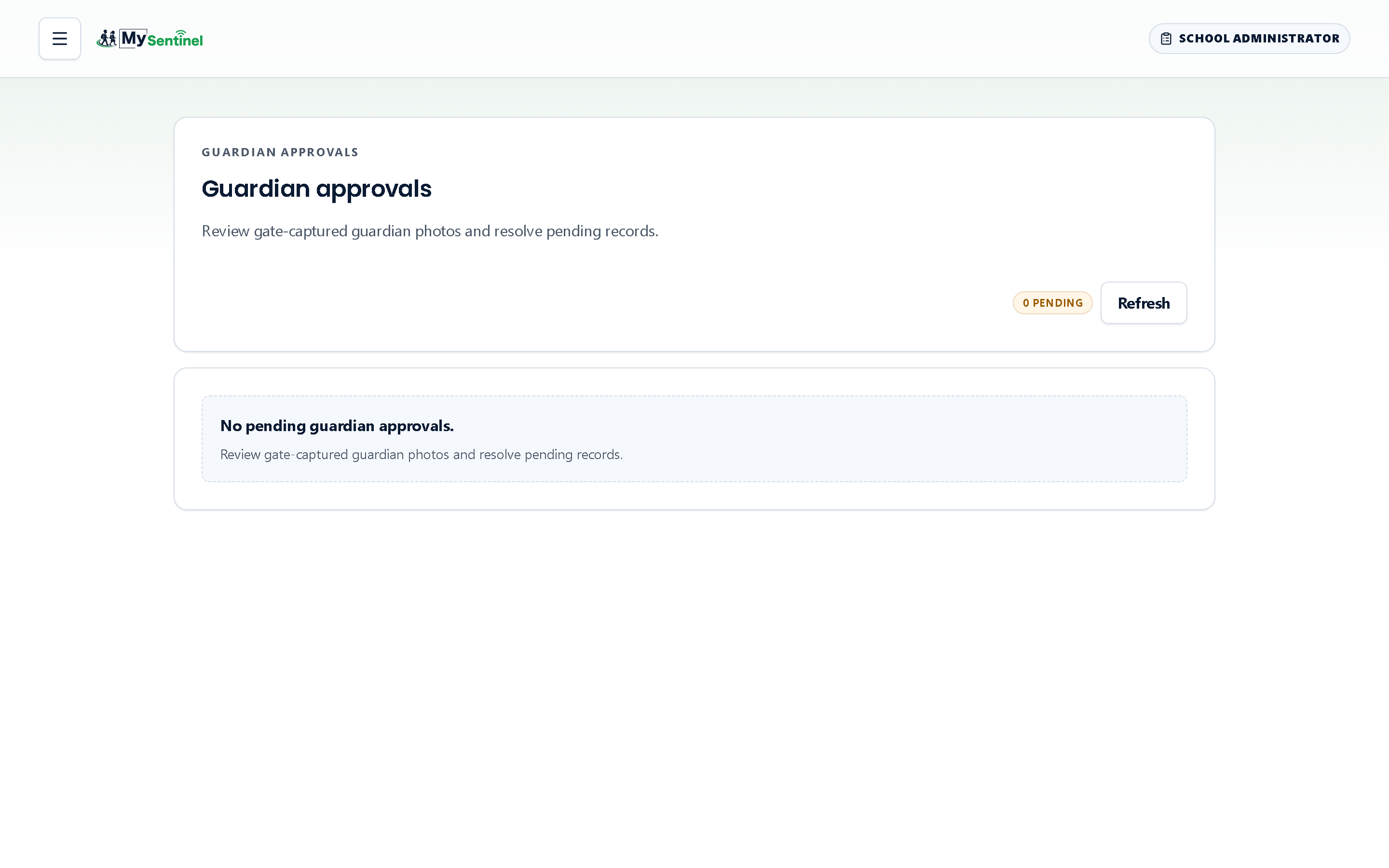
When an officer records a collection by an adult who is not yet on a learner’s list, the gate can capture that adult and send them here rather than turning them away. The screen is described as reviewing gate-captured guardian photos and resolving pending records, and that is exactly what it is: a photograph, a name, the learner they collected, and two buttons.
Approve adds them properly. Reject requires a reason before it will proceed — the field is labelled as required and the screen refuses to submit without it. That reason is not bureaucracy. It is the only account anybody will have, months later, of why a particular adult was refused.
When the queue empties the screen says No pending guardian approvals. If a photograph cannot be shown it says Photo unavailable rather than showing a blank, so you know the difference between no photograph and a failure to load one.
Approvals are worth doing daily. Every day a record sits here is a day the adult in question is neither properly on the list nor properly off it.
Guardian verification
Having a parent’s phone number is not the same as being able to reach them. A number or an address only becomes usable once the parent themselves has confirmed it, and until they do, nothing is sent to it at all.
The Guardian verification queue is described as the guardians who cannot receive notifications yet, with a resend available in one tap. Each row shows the parent, the learner, how long the record has been pending, and a chip per channel — Verified, Pending, Failing, Disabled, or one of No WhatsApp, No email, No phone where there is nothing on file to try.
Resend verification sends a fresh confirmation to the channels you pick, WhatsApp and email. What it sends depends on the channel: email carries a six-digit PIN and a link; WhatsApp carries neither, and instead asks the parent to reply YES. That is not an oversight — Meta rejects a WhatsApp template that carries a code, so the proof on WhatsApp is the reply itself, arriving on Meta’s signed webhook from the number the school holds. The screen then tells you what actually happened rather than claiming success: Verification message sent., or Resend limit reached — try again later., or Already confirmed by this parent — nothing to send., or a specific reason it was not sent — WhatsApp not yet approved for that language, the address blocked from receiving mail, the contact detail rejected, or the messaging service not responding.
Read those reasons before you resend a second time. Three of them will never succeed on a retry and need the contact detail corrected instead.
Your dashboard raises an amber card when guardian channels have been sitting unverified for more than seventy-two hours, with a Review link straight here.
SMS is confirmed with a signed form
SMS works one way for now. A parent gets notifications by SMS, but a reply to an SMS does not reach the school, so a number is never confirmed by asking the parent to reply. The school confirms it instead, against a paper form the parent has signed.
The SMS form is in the parents’ training pack, in English, Afrikaans and isiZulu. It tells the parent plainly that SMS brings notifications only and cannot be answered, that they should phone or visit the office when they need the school, and that stopping SMS or changing their number goes through the office. The parent ticks each line and signs; the school keeps the form.
On the learner’s Guardians tab, a parent whose SMS is waiting shows SMS · Needs signed form and a Confirm SMS button. Choose it, tick that the school holds the parent’s signed form, enter the date the parent signed, and confirm with your passkey or password. SMS is then confirmed for that parent and every child of theirs at the school, the row shows the date on the form, and the parent gets a welcome SMS with their parent portal link. The same button appears on Who we could not reach for a parent whose SMS is waiting for the form.
If the parent asks the school to stop SMS, choose Stop SMS on their row. Nothing more is sent to them by SMS; their other channels do not change. To start it again, the parent signs a new form and you confirm it. A new phone number always needs a new form.
Who we could not reach
The third screen is the one to check before you ever need it. Who we could not reach lists every parent at this school who would hear nothing if a check-in message went out right now.
It exists because a count of failed messages cannot find these families. A parent who has never confirmed a single channel is never attempted, so they never accumulate a failure — they are invisible to any measure built on failures, and the school finds out when one of them telephones to ask why nobody told them.
Each row names the parent, the learners they belong to, how many messages did not reach them in the last thirty days, the reasons, and the remedy. Where the remedy is a confirmation that never came back, the row carries a Send it again button and does it there and then. Where there is simply nothing on file, it sends you to the learner record to add something.
If your school has switched a channel off entirely, a note at the top says so and points out that switching it on would reach some of these parents. When the list is empty it says Every parent can be reached.
Guardians on a learner’s record
Day-to-day guardian editing happens on the Guardians tab of a learner’s record: adding an adult, correcting a number, seeing the same per-channel verification chips, resending a confirmation, and revoking a parent’s portal link if it has gone astray — a fresh link travels out with their next notification.
Two things there are worth flagging.
Contact notes and any warnings the system has raised about a guardian appear under the row. They are staff-facing and worth reading before you telephone.
And the button offering Deactivate person or Reactivate person is not the same as editing that one row. It opens a dialogue headed Everyone this person is guardian to, listing every child in the school this adult is attached to, because one press silences — or resumes — their notifications for all of them at once. That breadth is why the system stops and asks you to confirm with your passkey before it will save; your device asks for a fingerprint, a face or a PIN, and nothing changes if you cancel. Editing one row on one learner does not.
The system recognises “this adult” by their contact details, and a household number is sometimes given by more than one person. So the dialogue can also list an adult the school rejected at the gate, or one still waiting for review, who happened to give the same number. Those records are never switched on or off by the person button. They appear under their own heading, Not changed — each needs its own decision, with the reason beside each one. An adult waiting for review is decided in Guardian approvals, where you can see their photograph, and the dialogue links straight there. A rejected adult stays rejected unless somebody edits that one record on its learner’s Guardians tab, which the dialogue also links to. The person button is a decision about the adult you opened it for, not about everyone who shares their number, so it never reverses a rejection or skips a review.